Last modified by: Leanne Kalynuk -
Modifying an existing employee using a template
When an employee changes hours or job classifications, for example part time to full time or has a change in role, you can set the change to be applied by a template to adjust all the appropriate payroll instructions (earnings, benefits and deductions) at the start of a pay period.
Contents
Setting the Template to be Applied
Reviewing the Changes to Payroll Instructions
Changes to Position, Tax and RP Accounts
Setting the Template to be Applied
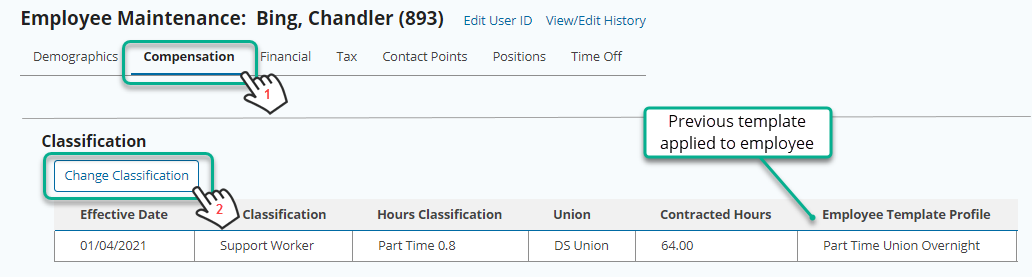
- For the desired employee, select the Compensation tab
- In the Classification section choose Change Classification
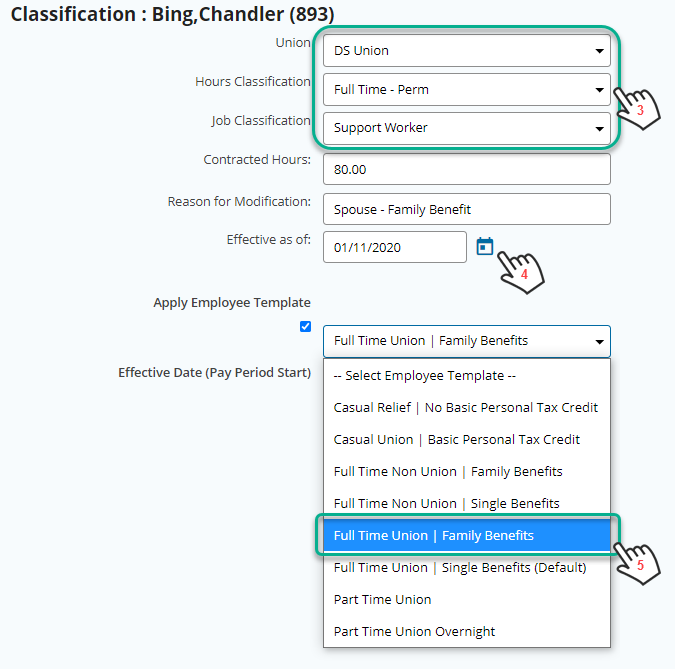
- Select the appropriate Union, Hours Classification and Job Classification
- Set the effective date for the change (note the template will be applied at the start of the first full pay period of eligibility)
- Set the appropriate employee template and save the change.
Reviewing the Changes to Payroll Instructions
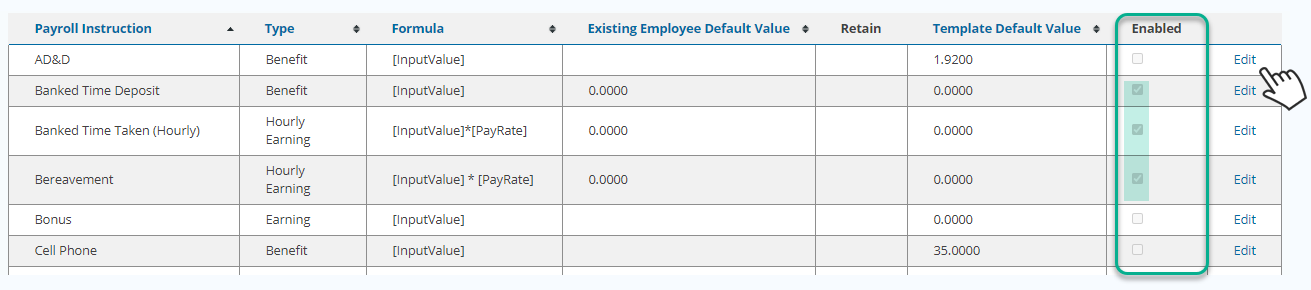
The list of payroll instructions including the default value and formula will be presented showing which will be enabled or disabled.
If the employee already has a formula or default value different than the template you can choose to retain the existing value of change to the template value and then choose Apply to set the changes.

For each payroll instruction in the listing you can also choose the Edit option on the far right of the row to make individualized changes.
Changes to Position, Tax and RP Accounts
Due to the variable and individualized nature of tax settings, and positions being applied to existing shifts in scheduling, changes to these details for the employee must be carried out manually. After applying the template changes, access the employee's profile and select the Tax or Positions tab to make the necessary adjustments.
Editing Employee Tax Information